 Distributor
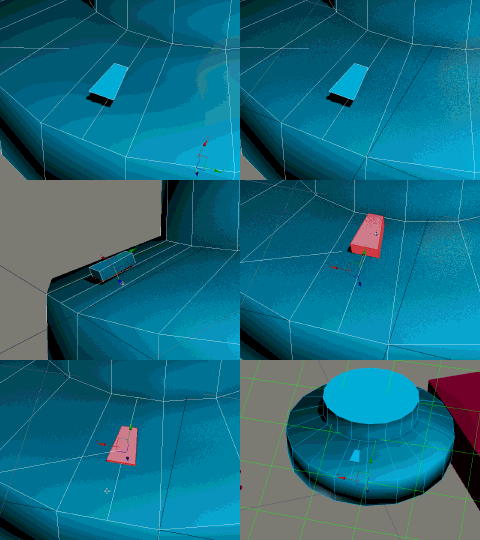
Quick way to distribute objects on a surface.

Usage:
1)Select a surface on which you want to place objects.
2)Select objects which you want to place on surface.
3)Run Distributor tool and start placing the objects.
Shortcuts:
Leftmouse: Shifting objects on surface.
Rightmouse: Select next object or For Exit pres two times.
Shift+Leftmouse: Clone objects.
Ctrl+Leftmouse: Rotation.
Alt+Leftmouse: Deleting –> WIP
Ctrl+Shift+Leftmouse: Add a new object into set. –> WIP
 3D Gallery
Shared database of models and their components. You can build anything from this.

Mužete snadno:

–add new models

––delete models

–rename models

–merge models into scene

–create main folders

–create subfolders
Painting on the surface will be added in the future.
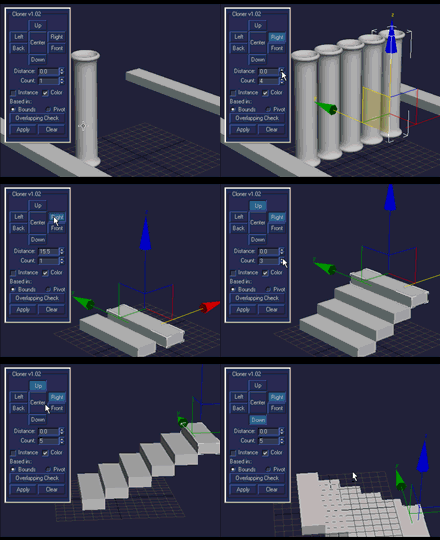
 Clone 2
Clone objects with interactive visualization. This way you can calculate right numbers of clones and their distances.
 Transformer
Transformation grid which gives you possibility to rotate, mirror and manipulate pivot.

On top of view you can change rotation angle.
Combination of Ctrl+Leftmouse can place pivot on any of green markers.
 Repair Object
If one object causes Max crashes, this will use one of three methods to fix it.

-Standard: will exchange old pivot with a new one.
-Export/Import: will export model as *.obj, delete old, and new one will be imported.
-Merge: All selected models will be transfered in a new scene.
 Bounding Box
Creating collision from selected geometry. Works also with vetrex selection.

Shortcuts:
Ctrl+Leftmouse: will create a dummy in center of the object.
Shift+Leftmouse: will use better but slower algorithm –>WIP
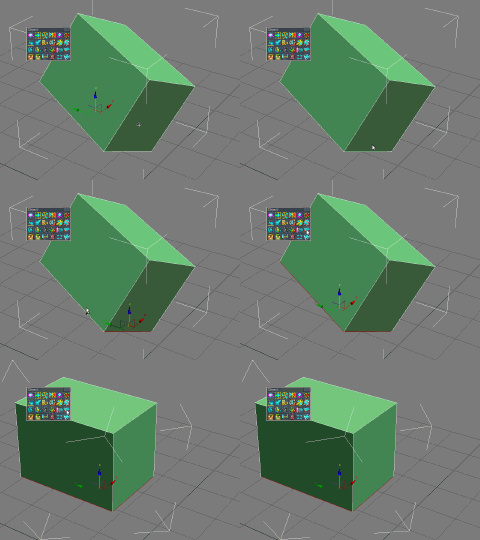
 Align object by 2 Edges
Will straighten the rotation of an object, using the angle of two selected edges.
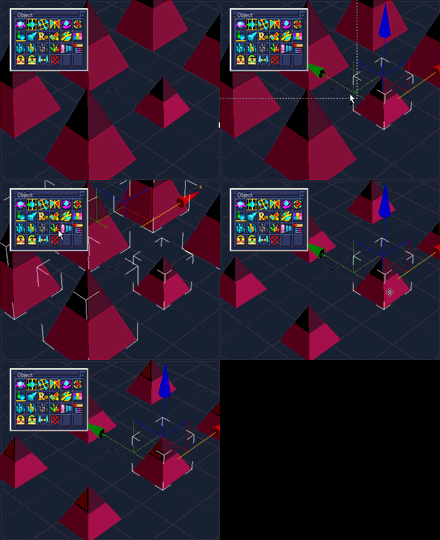
 Reinstance
Will create instances betwen selected objects, or will find all instances from selection Ctrl+Leftmouse.
 Deep Isolate
Simple and quick way to show hide objects or geometry. With two shortcuts only

Keystroke can be set up in Customize Interface\Category:Micra
Recommended settings:
DeepIsolateHide: Alt+Q
DeepIsolateUnhide: Alt+Shift+Q

Spline Magnet
Drawing splines on meshes. The splines can be converted to geometry.


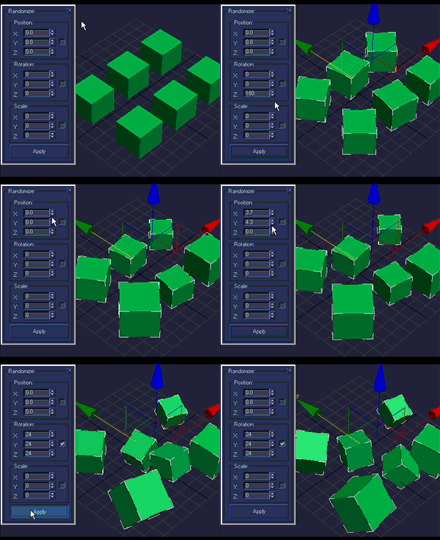
Randomize
Will distribute objects in space randomly.
 Snap To Ground
Will place selected objects on grid. +Shift will open a panel for more options.
 Color Palete
Create you own color palette, which will not disappear after Max restart.
Shortcuts:
Ctrl+Lefrmouse: add color from selected object.
Alt +Lefrmouse: remove color.
Middlemouse: edit color.
 Quad Check
All non quad polygons will be selected.
 Unwrap UVW Plus
Advanced function for UVW Mapping.
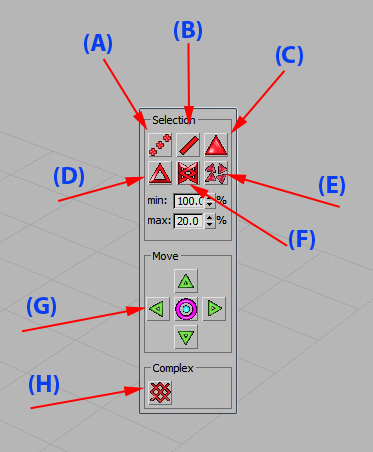
A) will convert selection into vertices.
B) will convert selection into edges.
C) will convert selection into faces.
D) will select border of mapping.
E) will select mapping elements with the same size.
F) will find mapping with overlapping.
G) will move mapping one window further or scale it.
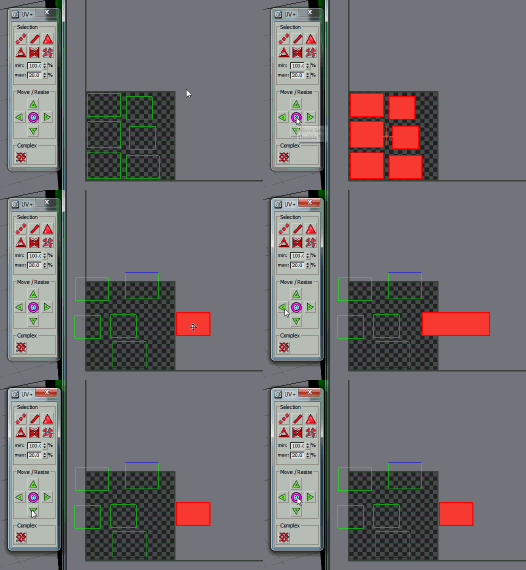 Shortcuts:
Ctrl+Leftmouse: will double size (arrow right), or half size (arrow left).
Shift+Leftmouse: only for middle mouse, will move all pieces to one place.
 Reset Material Editor
Will free all slots in material editor.
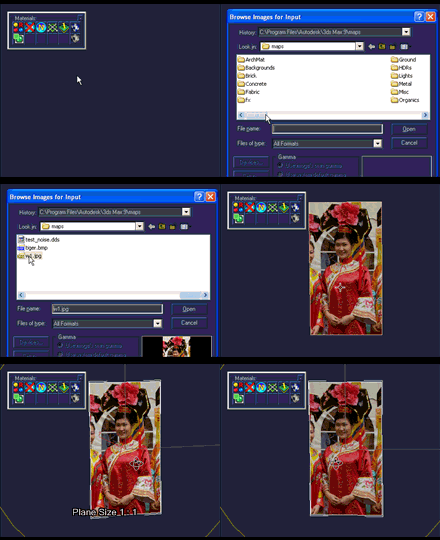
 Image To Plane
Will bring picture to plane with size 1:1.
 Set Object ID
Will set ID for selected objects or polygons.
 Edit Textures In PS
Textures from all selected models will be edited in Photoshop.
 Send UVW TO PS
Selected part of mapping will be transfered into Photoshop.
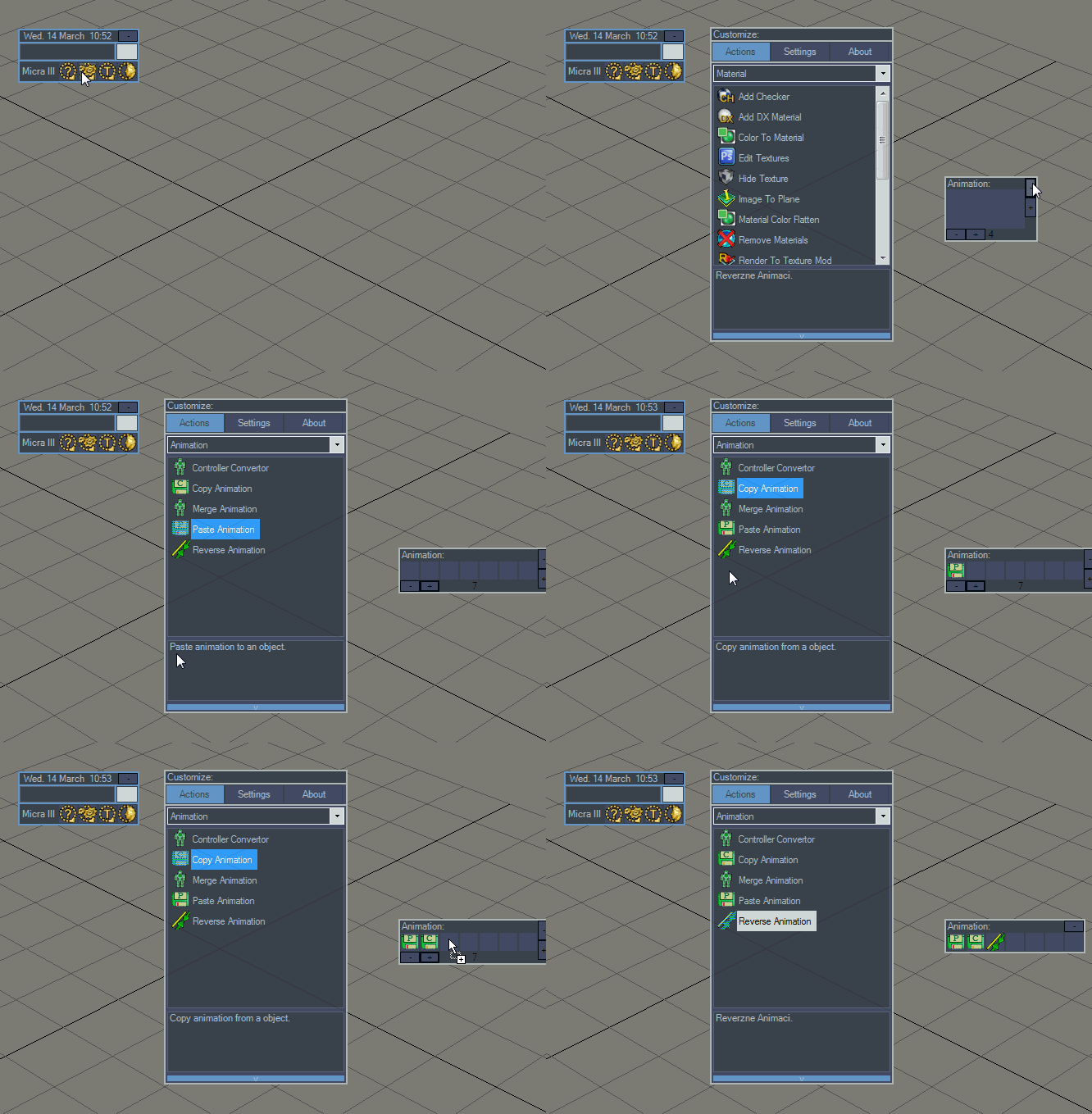
 Add Checker
Will apply a checker to selection, better mapping results.




 Help
: Displays this manual.
Help
: Displays this manual. Customize:
Opens panel with tools, settings and about.
Customize:
Opens panel with tools, settings and about. Toolbars:
Shows / Hides each toolbar.
Toolbars:
Shows / Hides each toolbar. Profiles:
Creates and saves different Profiles.
Profiles:
Creates and saves different Profiles. Objects

 Lowpolygon Wizard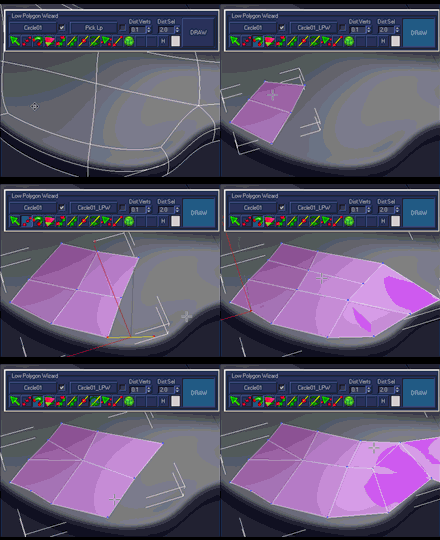

 Bridge Spline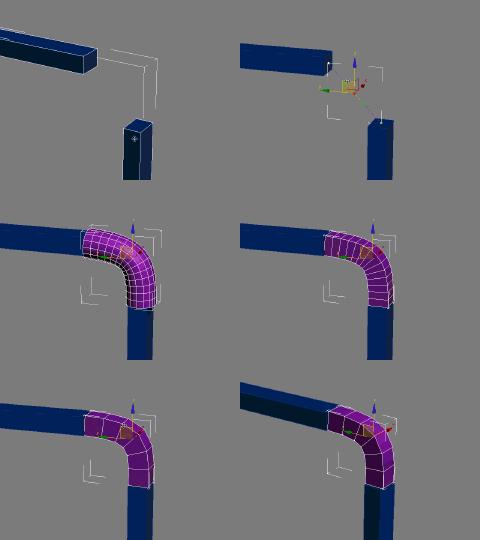
 Ring Optimizer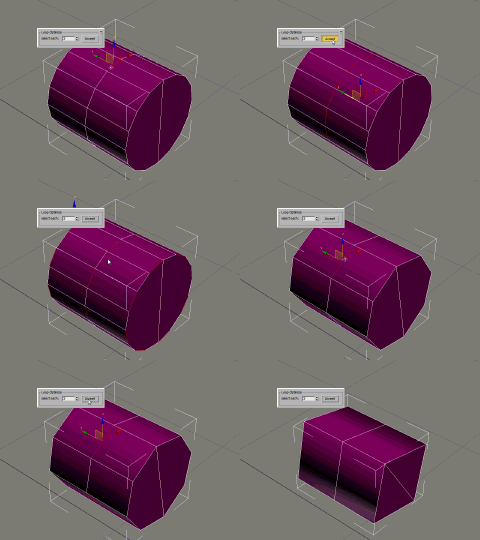
 Clear Vertices In Line


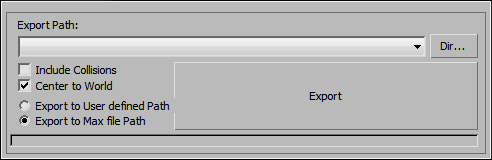


 Center pivot
 Center Object
 Select Half